The Complete RAM and Storage Guide for Gamers (2026): What Actually Matters
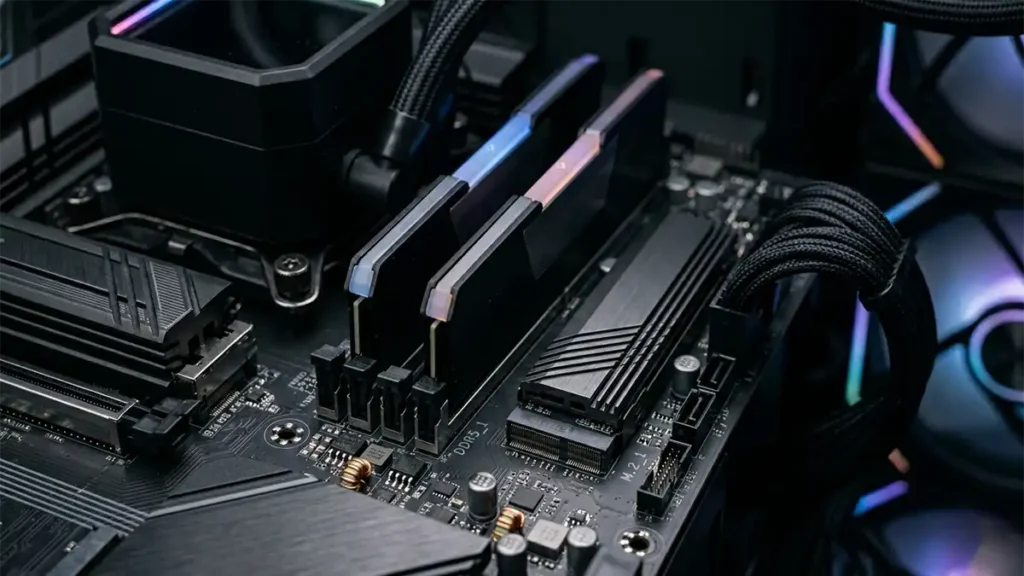
Your GPU determines how good your games look. Your CPU keeps things running smoothly. But if your PC feels sluggish, stutters unexpectedly, or takes forever to load, the culprit is almost always RAM or storage.
Neither component will hand you a dramatic FPS boost in a benchmark chart. What they do is define how your entire system feels to use every day, in every game, every session. Get them right and everything feels tight and responsive. Get them wrong and no amount of GPU power will save you from stutter, hitching, and frustrating load screens.
This RAM and Storage Guide covers everything you actually need to know to make a smart, future-proof decision in 2026 no filler, no spec-sheet padding.
This guide is for you if:
- You’re building or upgrading a gaming PC in 2026
- You’re confused by specs like DDR5, CAS latency, NVMe, or PCIe Gen 5
- You want to know how much RAM and storage you actually need
- You want to stop overpaying for specs that don’t change your real experience
What RAM and Storage Actually Do (The Honest Version)
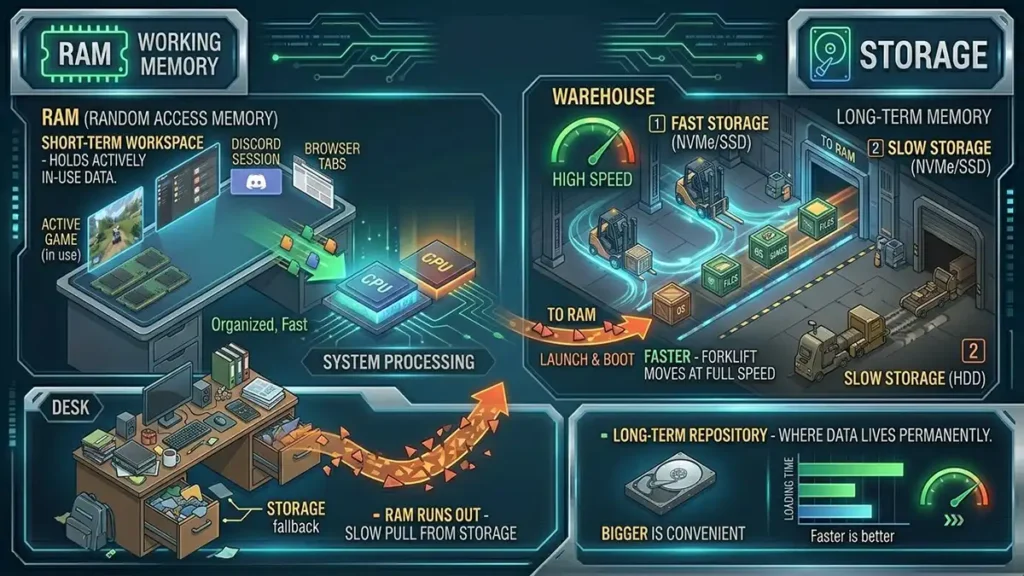
Before getting into specs, it helps to understand what these two components are genuinely responsible for, because they’re often confused or lumped together.
RAM (Random Access Memory) is your system’s short-term working memory. It holds everything that’s actively in use: the game you’re playing, the assets it’s currently drawing from, your Discord session, your browser tabs in the background. When your system needs something right now, it looks in RAM first.
Think of it like your desk. A bigger, better-organized desk lets you work faster because everything you need is within reach. A small, cluttered desk forces you to constantly dig through drawers, which is what happens when RAM runs out and your system starts pulling data from storage instead.
Storage is your long-term memory. It’s where everything lives permanently: your operating system, installed games, saved files, everything you’re not actively using. When you launch a game, it loads from storage into RAM. When you boot your PC, the OS loads from storage.
Think of storage like a warehouse. Bigger is more convenient. Faster means the forklift moves at full speed instead of crawling.
The Key Distinction
| Component | Role | What It Affects |
|---|---|---|
| RAM | Active working memory | Game smoothness, stutter, multitasking |
| Storage | Permanent data | Boot times, load times, install speed |
Both matter. Neither is glamorous. Getting them right is one of the smartest things you can do with your budget.
Part One: RAM
1. How RAM Actually Affects Your Gaming Experience
The most common mistake buyers make is thinking about RAM purely in terms of FPS. In most scenarios, RAM doesn’t directly push your frame rate higher, what it does is prevent your system from slowing down when things get demanding.
What happens when you don’t have enough RAM:
- Stutter in open-world games — assets can’t all fit in memory, so the system hitches while fetching data from storage
- Frame time spikes — even if average FPS looks fine, individual frames take much longer, producing a jarring, inconsistent feel
- Slow alt-tabbing — switching between game and desktop becomes sluggish
- System-level slowdowns — background processes compete with the game for memory, causing unpredictable drops
- Crashes in memory-intensive titles — some modern games will outright fail to load at high settings without sufficient RAM
Modern games are more memory-hungry than most people expect. Titles like Hogwarts Legacy, Alan Wake 2, Starfield, and Microsoft Flight Simulator 2024 regularly push past 12–16GB of total system memory usage when you factor in the OS and background processes running alongside them.
2. How Much RAM Do You Actually Need in 2026?
This is the most practical question, and the answer has shifted upward compared to even two years ago.
| RAM Capacity | Who It’s For | Reality Check |
|---|---|---|
| 16GB | Budget / older systems | Functional, but showing limits in demanding titles |
| 32GB | The 2026 sweet spot | Covers virtually all gaming scenarios with headroom |
| 64GB | Content creators, streamers, heavy multitaskers | Overkill for gaming alone |
| 128GB+ | Professional workstations | Not relevant for gaming |
16GB will still run most games in 2026, but you’ll notice the ceiling. If you’re also running Discord, a browser with a few tabs, and OBS simultaneously which describes the average gamer’s actual usage, 16GB starts getting genuinely tight in demanding titles. The stutters that appear aren’t GPU or CPU problems; they’re memory pressure.
32GB is the right answer for almost everyone building a new gaming PC today. It comfortably handles the most demanding current titles, leaves room for multitasking, and gives you headroom as games continue getting heavier over the next few years.
64GB makes sense if you’re also doing video editing, 3D rendering, running virtual machines, or streaming at high quality while gaming. For pure gaming, it’s unnecessary.
If you’re on a budget and have to choose, prioritize getting 32GB of slower RAM over 16GB of faster RAM. Capacity matters more than speed once you’re below the minimum.
3. DDR4 vs DDR5: Which One Should You Buy in 2026?
DDR5 is now the standard for new builds in 2026. DDR4 platforms still exist, particularly on older Intel LGA1700 boards and AM4, but if you’re building fresh today, you’re almost certainly looking at a DDR5 platform.
Here’s the honest breakdown of the difference:
| Factor | DDR4 | DDR5 |
|---|---|---|
| Price | Lower | Higher (though gap has narrowed significantly) |
| Latency (raw) | Lower (better) | Higher (worse at equivalent frequencies) |
| Bandwidth | Lower | Much higher |
| Maximum speeds | Up to ~5200 MT/s (practically) | 6000–8000+ MT/s mainstream |
| Platform support | Intel LGA1700, AMD AM4 | Intel LGA1851, AMD AM5 |
| Future-proofing | Limited — both platforms nearing end-of-life | Better — AM5 has runway through 2027+ |
| Error correction | No (consumer) | On-die ECC improves stability |
The key nuance people miss: DDR5 has higher raw latency numbers (CAS latency) than DDR4. This sounds like a disadvantage, but it doesn’t tell the whole story. DDR5 operates at much higher frequencies, meaning each memory cycle happens faster. At equivalent tuned speeds, DDR5’s much greater bandwidth often compensates for and outpaces DDR4, especially on AMD Ryzen processors, which have historically benefited significantly from memory bandwidth.
For new builds in 2026: buy DDR5. The price premium has shrunk considerably, the platforms it runs on are current-gen, and you’re investing in hardware with a longer useful life.
4. RAM Speed and Latency: The Part Most People Get Wrong
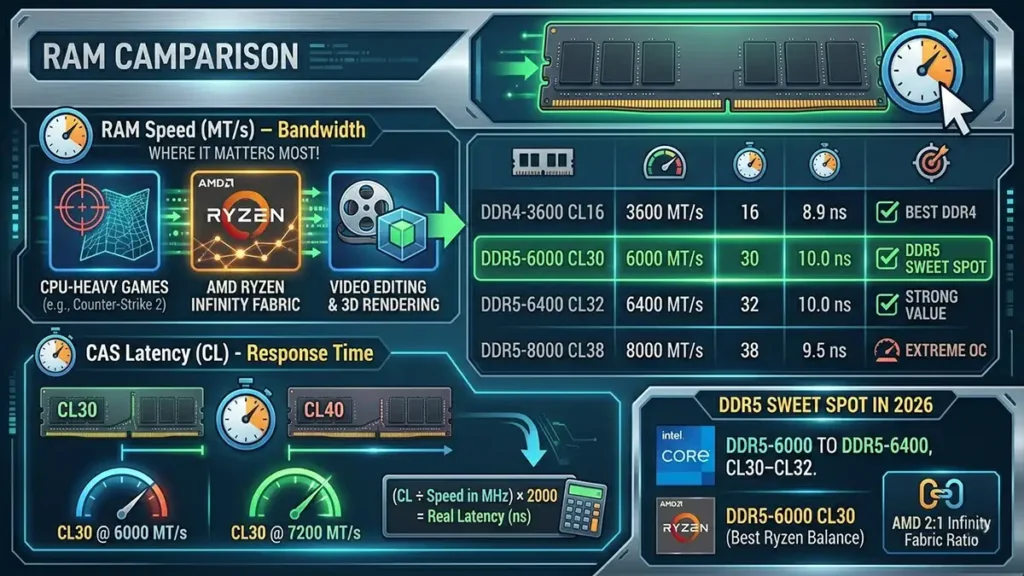
RAM speed is measured in MT/s (megatransfers per second), you’ll also see this written as MHz, though the two aren’t technically identical. CAS latency (CL) measures response time. Both matter, and you need to understand how they interact.
Speed (MT/s)
Higher speeds mean more data can move per second more bandwidth. This matters most in:
- CPU-heavy games where the processor constantly needs fast data access (Counter-Strike 2, simulation games)
- AMD Ryzen platforms, which are particularly bandwidth-sensitive due to the Infinity Fabric architecture
- Workloads that move large amounts of data rapidly (video editing, 3D rendering)
CAS Latency (CL)
CAS latency measures how many clock cycles pass between the memory controller requesting data and the RAM delivering it. Lower is better, CL30 is faster to respond than CL40.
The catch: you can’t compare CL numbers across different frequencies directly. CL30 at DDR5-6000 has a different real-world response time than CL30 at DDR5-7200, because the underlying clock cycles happen at different speeds. You need to calculate actual nanosecond latency to compare fairly.
The formula: (CL ÷ Speed in MHz) × 2000 = nanoseconds of latency
| RAM Kit | Speed | CAS Latency | Real Latency (ns) | Best For |
|---|---|---|---|---|
| DDR4-3200 CL16 | 3200 MT/s | 16 | 10.0 ns | Budget DDR4 builds |
| DDR4-3600 CL16 | 3600 MT/s | 16 | 8.9 ns | ✅ Best DDR4 option |
| DDR5-5600 CL36 | 5600 MT/s | 36 | 12.9 ns | Entry DDR5 |
| DDR5-6000 CL30 | 6000 MT/s | 30 | 10.0 ns | ✅ DDR5 sweet spot |
| DDR5-6400 CL32 | 6400 MT/s | 32 | 10.0 ns | ✅ Strong DDR5 value |
| DDR5-7200 CL34 | 7200 MT/s | 34 | 9.4 ns | Enthusiast tier |
| DDR5-8000 CL38 | 8000 MT/s | 38 | 9.5 ns | Extreme OC / diminishing returns |
The DDR5 Sweet Spot in 2026
For Intel platforms: DDR5-6000 to DDR5-6400, CL30–CL32
For AMD Ryzen (AM5): DDR5-6000, CL30 specifically, this aligns with the 2:1 Infinity Fabric ratio that AMD’s architecture prefers, delivering the best balance of bandwidth and latency for Ryzen processors.
Going beyond DDR5-6400 gives diminishing real-world returns for gaming. The performance difference between DDR5-6000 and DDR5-8000 in most games is in the 1–3% range measurable in benchmarks, invisible in actual play.
5. Dual-Channel: Free Performance You Shouldn’t Skip
This is one of the easiest performance wins available, and surprisingly many builds still get it wrong.
Modern CPUs use a dual-channel memory interface, meaning the memory controller is designed to communicate with two sticks of RAM simultaneously. Running two sticks doubles the effective bandwidth compared to one stick, even if the total capacity is identical.
| Configuration | Bandwidth | Performance |
|---|---|---|
| 1× 32GB (single channel) | Baseline | Slower |
| 2× 16GB (dual channel) | ~2× baseline | ✅ Noticeably faster |
The performance difference is not subtle in bandwidth-sensitive workloads. On AMD Ryzen in particular, moving from single to dual channel can improve FPS by 5–15% in CPU-bound scenarios. Always buy RAM in matched pairs.
Practical tip: If your motherboard has four RAM slots, install two sticks in the correct slots (usually slots 2 and 4, but check your manual). Don’t fill all four slots unless you specifically need 64GB+ , four sticks can sometimes cause stability issues and may reduce maximum achievable speeds.
6. XMP and EXPO: Enable This in Your BIOS
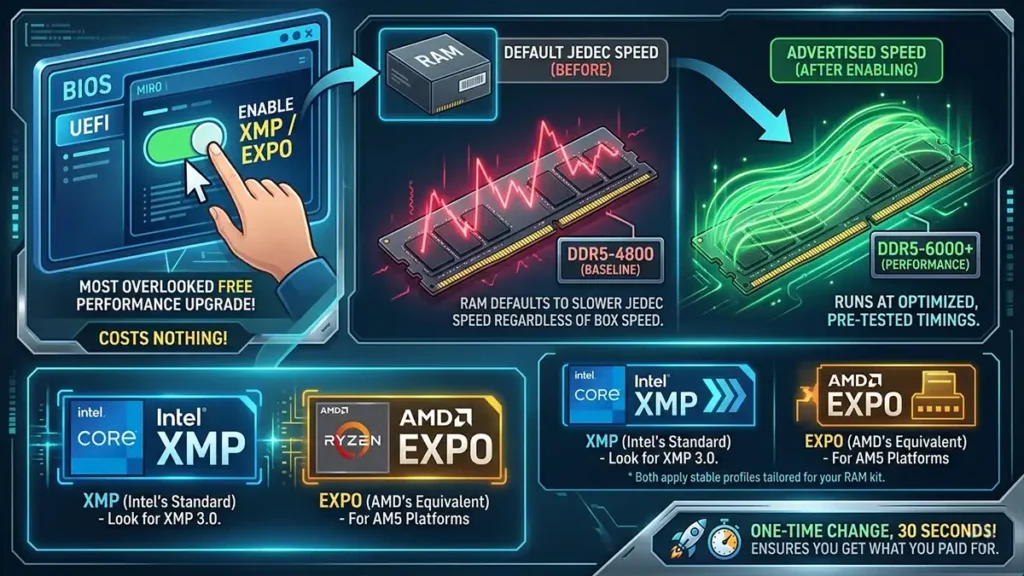
This is the single most overlooked free performance upgrade in PC building, and it costs nothing.
When you install RAM in a new system, it defaults to the JEDEC baseline speed — often DDR5-4800 — regardless of what speed is printed on the box. To run at the advertised speed (e.g., DDR5-6000), you need to enable a memory profile in your BIOS.
- XMP (Extreme Memory Profile) — Intel’s standard. Look for XMP 3.0 on modern DDR5 kits.
- EXPO (Extended Profiles for Overclocking) — AMD’s equivalent. Used on AM5 platforms.
Both do the same thing: apply pre-tested, stable timings optimized for that specific kit. It’s a one-time change in BIOS that takes 30 seconds, and it ensures you’re getting what you paid for.
If you’ve never checked this, go into your BIOS, find the memory settings, enable XMP or EXPO, save, and reboot. It’s genuinely that simple.
7. RAM by Gamer Type
| Gamer Type | Recommended Capacity | Recommended Speed | Notes |
|---|---|---|---|
| Budget / Entry | 16GB DDR5 | 5600 MT/s | Functional minimum; upgrade path recommended |
| Mainstream Gamer | 32GB DDR5 | 6000 CL30 | ✅ Best overall choice |
| Competitive FPS | 32GB DDR5 | 6000–6400 CL30 | Fast RAM helps more in CPU-bound games |
| 1440p / 4K AAA | 32GB DDR5 | 6000 CL30 | Capacity matters more than extreme speed |
| Modded Games | 32–64GB DDR5 | 6000 CL30 | Heavily modded Skyrim, BeamNG, etc. eat RAM |
| Streamer + Gamer | 64GB DDR5 | 6000 CL30 | Running OBS, browser, and game simultaneously |
| Creator / Dev | 64GB+ DDR5 | 6000+ | Video editing, compiling, VMs |
8. Common RAM Buying Mistakes
- Buying only one stick — you’re leaving bandwidth on the table. Always buy in pairs.
- Not enabling XMP/EXPO — your expensive RAM is running at base speeds until you do.
- Buying 4 sticks when 2 is enough — adds instability risk and limits overclocking headroom without meaningful benefit for most users.
- Chasing extreme speeds — DDR5-8000 costs significantly more than DDR5-6000 for 1–3% real-world gaming gains.
- Ignoring compatibility — check your motherboard’s QVL (Qualified Vendor List) before buying, especially for high-speed kits. Not all RAM runs at rated speeds on all boards.
- Underbuying capacity to afford faster RAM — 16GB DDR5-7200 is a worse choice than 32GB DDR5-6000 for a gaming build.
Part Two: Storage
1. How Storage Affects Your Gaming Experience
Storage doesn’t affect FPS, full stop. But it affects almost everything else you experience:
- How long you wait at loading screens
- How fast your PC boots
- Whether open-world games stream assets smoothly or hitch
- How quickly games install and update
- How snappy your desktop feels day-to-day
The jump from an HDD to an SSD is the most dramatic single upgrade most people can make to an older system. Everything changes, not just load times, but the general responsiveness of the entire machine. In 2026, HDDs have no place as a primary drive in a gaming PC.
2. SSD vs HDD: This Conversation Should Be Over
| Feature | SSD | HDD |
|---|---|---|
| Speed | 500 MB/s to 14,000+ MB/s | 80–160 MB/s |
| Access time | < 0.1ms | 5–10ms |
| Noise | Silent | Audible (moving parts) |
| Durability | No moving parts | Vulnerable to impact |
| Power use | Lower | Higher |
| Price per GB | Higher | Lower |
| Recommended for gaming | ✅ Yes | ❌ No (primary drive) |
HDDs still have a role as cheap bulk storage for files you rarely access backups, large media archives, photos. For anything you actually use your OS, your games, your active files. an SSD is the only sensible choice in 2026.
A modern NVMe SSD will load most game levels in 2–4 seconds. A mechanical HDD in the same system will take 20–40 seconds for the same load. That’s not a small quality-of-life difference; it’s the difference between a fluid experience and a frustrating one.
3. SATA vs NVMe: Understanding the Real Difference
Not all SSDs are equal. The interface they use determines their performance ceiling, and it’s one of the most commonly misunderstood distinctions in PC hardware.
SATA SSDs connect via the same interface that older hard drives used. They’re fast compared to HDDs, but the interface itself caps performance at around 550 MB/s sequential read. They’re usually 2.5-inch drives that plug into a SATA port.
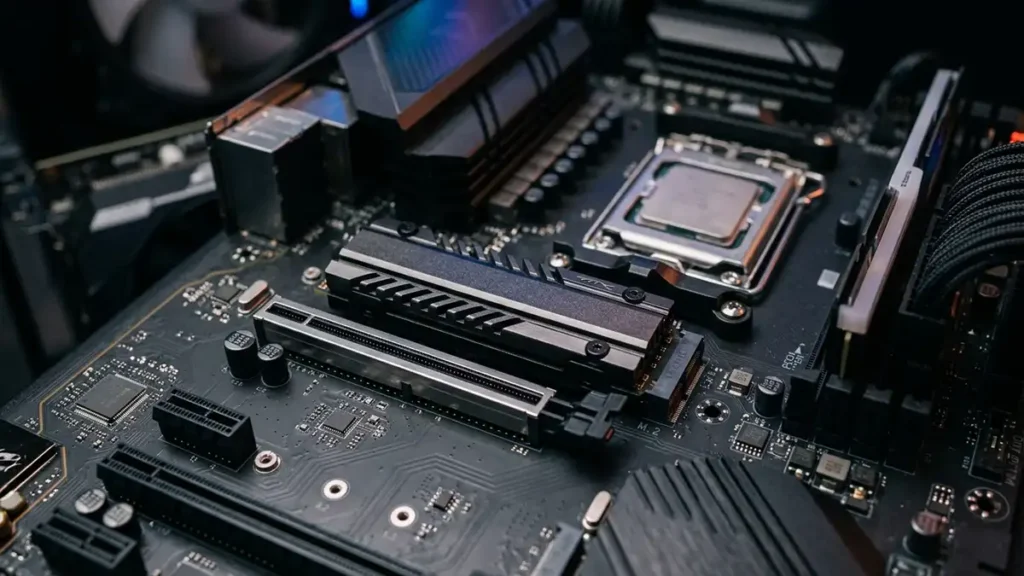
NVMe SSDs connect directly to the CPU via PCIe lanes using the M.2 form factor (the small card that slots directly into the motherboard). They bypass the SATA bottleneck entirely.
| Interface | Form Factor | Typical Sequential Read | Typical Sequential Write |
|---|---|---|---|
| SATA SSD | 2.5″ or M.2 SATA | ~500–550 MB/s | ~450–520 MB/s |
| NVMe PCIe 3.0 | M.2 | ~3,000–3,500 MB/s | ~2,000–3,000 MB/s |
| NVMe PCIe 4.0 | M.2 | ~5,000–7,000 MB/s | ~4,000–6,500 MB/s |
| NVMe PCIe 5.0 | M.2 | ~10,000–14,000 MB/s | ~8,000–12,000 MB/s |
Does the Speed Difference Actually Matter in Gaming?
Here’s where it gets nuanced and where a lot of guides either mislead you or oversimplify.
SATA vs NVMe PCIe 4.0: In traditional gaming, this difference is smaller than the raw numbers suggest. Most game load times are bottlenecked by how fast the game can process and decompress data, not how fast the drive delivers raw bytes. A PCIe 4.0 NVMe and a SATA SSD will often load the same game within 1–3 seconds of each other.
However, that’s changing. Microsoft’s DirectStorage API (now widely adopted in 2026 games) allows GPU-accelerated asset decompression and bypasses the traditional CPU bottleneck. Games built around DirectStorage can leverage faster NVMe drives meaningfully, particularly PCIe 4.0 and 5.0 for noticeably faster open-world streaming and level loads.
PCIe 5.0 NVMe: The speeds are extraordinary on paper (up to 14,000 MB/s), but real-world gaming benefits over PCIe 4.0 are currently marginal unless you’re running DirectStorage-optimized titles. These drives also run hot and require adequate cooling (a heatsink is recommended). The price premium isn’t justified purely for gaming in 2026, PCIe 4.0 remains the value sweet spot.
Bottom line: For most gamers, a quality PCIe 4.0 NVMe SSD is the sweet spot. It’s genuinely fast, well-supported, competitively priced, and more than capable for everything current and upcoming games will ask of it.
4. How Much Storage Do You Actually Need?
Modern games are large, and they keep getting larger. Call of Duty titles regularly exceed 100GB. A single AAA game like Star Wars Outlaws or Cyberpunk 2077 with all updates can push 80–130GB.
| Capacity | Reality in 2026 |
|---|---|
| 500GB | Too small for a primary drive — you’ll be constantly managing space |
| 1TB | Minimum viable — fits the OS plus 6–10 large games |
| 2TB | ✅ The smart sweet spot for most gamers |
| 4TB | Large game libraries or if you prefer to keep everything installed |
| 4TB+ | Multiple platforms, content creation, archiving |
The recommended strategy for 2026:
- Primary NVMe (2TB PCIe 4.0): OS + your most-played games + applications
- Secondary drive (2TB SATA SSD or secondary NVMe): overflow games, less-played titles
- Optional: Large HDD (4–8TB): archiving, media storage, long-term backups
This setup keeps your active content fast without forcing constant juggling of what’s installed.
5. What to Actually Look for in an NVMe Drive
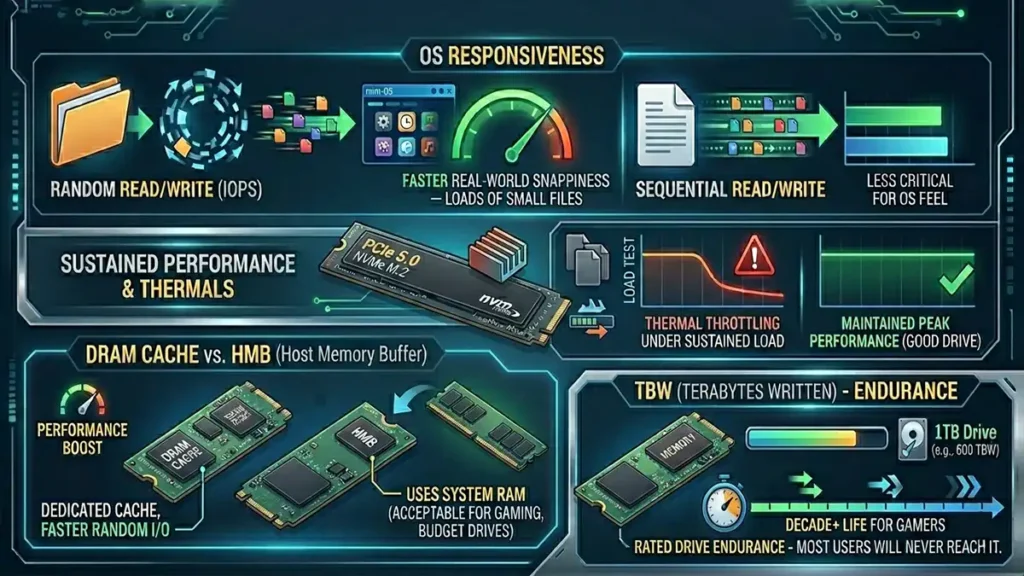
Sequential read/write speeds are the headline specs, but they’re not the full story for day-to-day use.
Random read/write performance (IOPS) matters more for gaming and OS responsiveness than sequential speeds. When your OS accesses lots of small files which it does constantly, random performance determines how snappy everything feels. Check random 4K read/write specs, not just the sequential numbers on the box.
Sustained performance and thermal throttling is a real issue with some high-speed drives, particularly PCIe 5.0 models. Some drives deliver their rated peak speeds for a few seconds before throttling under sustained load. If you frequently move large files or do long renders, check third-party reviews that test sustained performance. For gaming, which uses shorter bursts, this matters less.
DRAM cache vs HEMliner (HMB): High-quality NVMe drives include dedicated DRAM cache, which significantly helps with random I/O and sustained workloads. Budget drives often use Host Memory Buffer (HMB), instead borrowing system RAM which is acceptable for gaming but not ideal for heavier workloads.
TBW (Terabytes Written): The rated endurance of the drive. For gaming, even budget drives have TBW ratings that most users will never approach. A 1TB drive with 600 TBW will last the vast majority of gamers a decade or more at normal usage patterns.
6. Storage Speed: Real-World Gaming Load Times
To put the performance differences in practical context:
| Storage Type | Typical Game Load (Heavy Open World) | System Boot | Large Game Install |
|---|---|---|---|
| 7200RPM HDD | 45–90 seconds | 45–90 seconds | Very slow |
| SATA SSD | 5–12 seconds | 8–15 seconds | Moderate |
| NVMe PCIe 3.0 | 4–9 seconds | 6–12 seconds | Fast |
| NVMe PCIe 4.0 | 3–7 seconds | 4–8 seconds | Very fast |
| NVMe PCIe 5.0 | 2–5 seconds | 3–6 seconds | Fastest |
Load times vary significantly by game optimization, system RAM, and CPU. These are representative averages.
The most impactful jump, by far, is HDD to any SSD. Every step after that offers improvement, but with diminishing returns. The step from PCIe 4.0 to PCIe 5.0 is the smallest real-world leap despite the largest spec sheet difference.
7. Storage by Gamer Type
| Gamer Type | Recommended Primary | Recommended Capacity | Notes |
|---|---|---|---|
| Budget Builder | NVMe PCIe 3.0 or SATA SSD | 1TB | Upgrade later; any SSD beats HDD |
| Mainstream Gamer | NVMe PCIe 4.0 | 2TB | ✅ Best value recommendation |
| Large Game Library | NVMe PCIe 4.0 | 2TB + 2TB secondary | Keep active games on NVMe |
| Competitive FPS | NVMe PCIe 4.0 | 1–2TB | Fast loads, smaller installs (esports titles are leaner) |
| Open World / DirectStorage | NVMe PCIe 4.0 or 5.0 | 2TB | Benefits from faster drive in new titles |
| Content Creator | NVMe PCIe 4.0 | 2TB NVMe + large HDD | Fast scratch disk + cheap bulk storage |
8. Common Storage Buying Mistakes
- Using an HDD as your primary drive in 2026 — there is no justification for this on a new build. HDDs belong in the backup/archive role only.
- Buying too little capacity — 500GB feels fine until month three when you’re constantly uninstalling games to make room.
- Overpaying for PCIe 5.0 — the real-world gaming gains over PCIe 4.0 don’t justify the significant price premium in 2026.
- Ignoring the heatsink on fast drives — PCIe 4.0 and especially PCIe 5.0 drives run hot. If your motherboard doesn’t include an M.2 heatsink, buy one or choose a drive that includes its own.
- Assuming all NVMe drives are equal — a budget PCIe 4.0 drive with no DRAM cache can perform significantly worse than a quality PCIe 4.0 drive at the same rated speed. Check third-party reviews.
How RAM and Storage Work Together
Understanding the relationship between these two components helps you troubleshoot problems and prioritize spending.
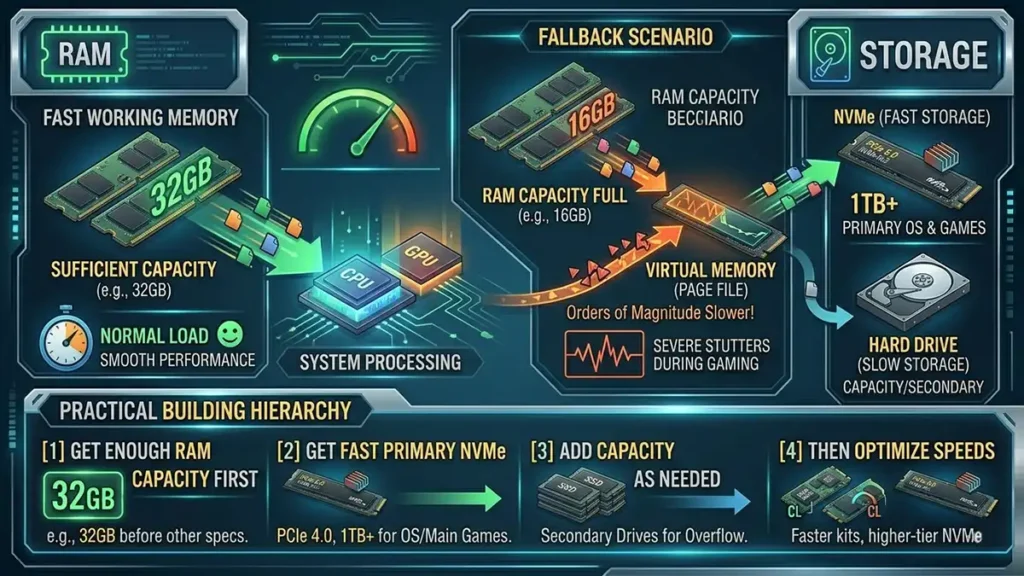
When RAM fills up, your operating system begins using a portion of your storage drive as virtual memory (called the page file on Windows). This is a last-resort fallback, even an NVMe drive is orders of magnitude slower than physical RAM for this purpose. If your system starts using virtual memory heavily during gaming, you’ll see severe stutters and hitching that feel almost like a hard drive failing.
This is why a game that runs smoothly at 32GB RAM might stutter badly at 16GB, not because the CPU or GPU is struggling, but because the system has run out of fast working memory and is borrowing from storage.
The practical hierarchy for building:
- Get enough RAM capacity first — 32GB before anything else
- Get a fast primary NVMe for your OS and main games — PCIe 4.0, at least 1TB
- Add storage capacity as needed — secondary SSD or NVMe for overflow
- Then optimize speeds — faster RAM kits, higher-tier NVMe
In that order, you’ll have a system that performs well across all scenarios without wasting money on specs that don’t move the needle.
RAM & Storage Guide: FAQ ❓
Only if you’re upgrading an existing DDR4 platform (Intel LGA1700 or AMD AM4) where replacing the motherboard isn’t in the budget. For any new build, DDR5 is the right choice, the price difference has narrowed significantly and the platform longevity is better.
Not yet, for most gamers. PCIe 5.0 drives offer extraordinary peak speeds but the real-world gaming advantage over PCIe 4.0 is currently small. They’re also more expensive and run significantly hotter. The value case doesn’t hold up in 2026 unless you’re doing heavy professional workloads alongside gaming.
No, FPS is determined by GPU and CPU, not storage. Faster storage reduces load times and improves asset streaming in open-world games, but it doesn’t affect the rendered frame rate during gameplay.
GameMonkey Verdict
Capacity first, then quality, then speed
RAM and storage won’t win benchmark wars, but they define how your PC actually feels.
The right approach is straightforward: prioritize capacity first, then quality, then speed. Thirty-two gigabytes of DDR5-6000 running in dual channel with XMP enabled will serve virtually every gamer well through this hardware generation. A 2TB PCIe 4.0 NVMe from a reputable brand covers your storage needs without overpaying for specs that don’t translate to real experiences.
Our recommendations at a glance:
- RAM: 32GB DDR5-6000 CL30, two sticks, XMP/EXPO enabled — this is the answer for almost everyone
- Storage: 2TB PCIe 4.0 NVMe as your primary drive — the value sweet spot in 2026
- Skip: DDR5-7200+ for gaming builds, PCIe 5.0 SSDs unless you have a specific need, single-stick configurations
Avoid the extremes on both ends. Too little capacity creates real problems. Chasing maximum specs spends money that delivers nothing you’ll actually feel. Hit the sweet spots and put the rest of your budget where it makes a bigger difference, your GPU and display.