Your GPU Isn’t Being Fully Used — Every Reason Why and How to Fix It (2026)
You built or bought a gaming PC. You check GPU usage while gaming and it’s sitting at 45%. Your FPS is lower than every benchmark you watched. Something feels wrong.
Here’s the truth: low GPU usage is one of the most misunderstood situations in PC gaming. Sometimes it means your GPU is broken. Most of the time it means something else entirely — and that something else has a specific fix.
This guide covers every real cause, in order of how common each one is. By the end you’ll know exactly what’s wrong with your setup and what to do about it.
This guide is for you if:
- Your GPU usage sits below 70% while gaming and FPS is disappointing
- Your GPU isn’t showing up in Device Manager or GPU-Z at all
- You upgraded your GPU and your FPS barely changed
- Your game stutters even though your GPU usage looks fine
- You’re getting lower performance than benchmarks suggest you should
Before You Read Further — Check This First
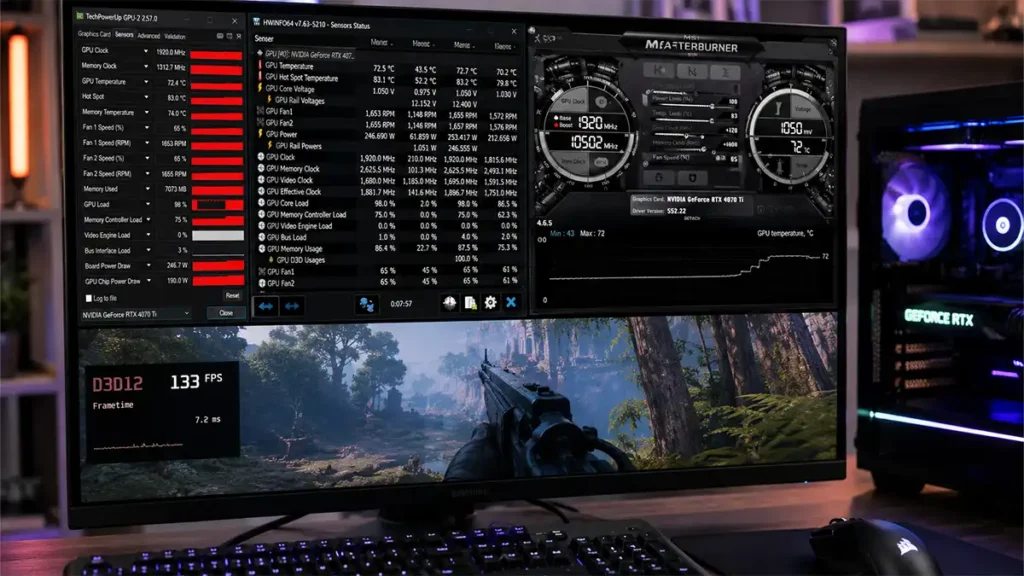
Open Task Manager, go to the Performance tab, click GPU, and look at what percentage it shows.
If it shows low usage — stop trusting Task Manager immediately.
Task Manager is genuinely unreliable for GPU monitoring. It frequently shows the wrong engine, averages numbers incorrectly, or picks up video decode and copy operations instead of actual gaming load. A card running perfectly at full 3D load has shown up as 30% in Task Manager.
The correct tools for GPU monitoring are all free:
- GPU-Z (free — techpowerup.com) — shows real GPU core usage, VRAM usage, clocks, and the critical PerfCap Reason field that tells you exactly why your GPU is throttling
- HWiNFO64 (free — hwinfo.com) — shows hotspot temperature, power draw, clock fluctuations, and throttle flags in real time
- MSI Afterburner (free — msi.com/landing/afterburner) — overlays all of this on screen while you play
Download at least GPU-Z and HWiNFO before diagnosing anything. Everything else in this guide assumes you’re using these, not Task Manager.
The 5-Minute Diagnosis — Start Here
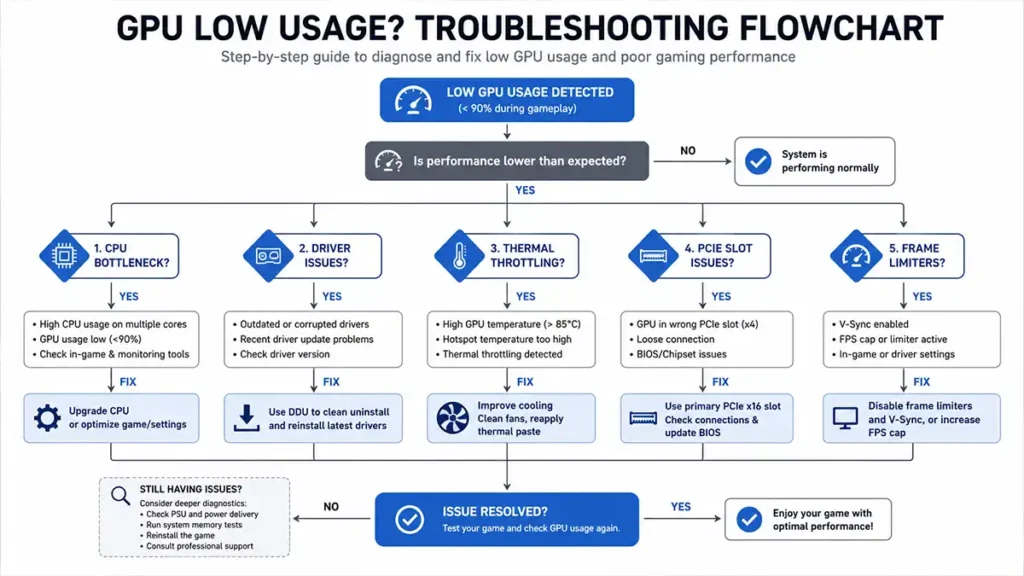
Answer these questions in order. The first one that matches your situation points you to the right section.
Section 1: CPU Bottleneck
How common: Extremely common. This is the single most frequent cause of low GPU usage.
What it actually means
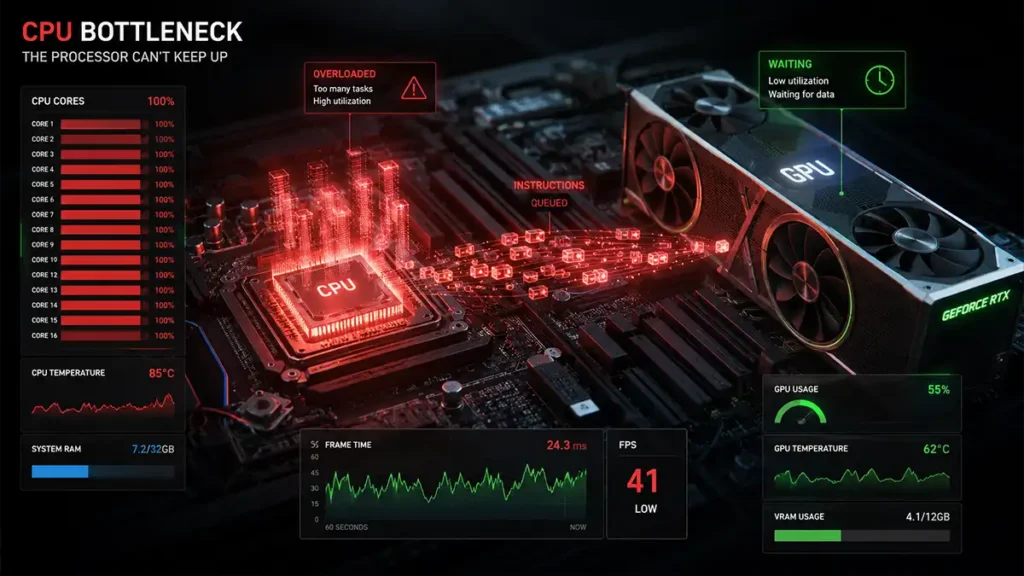
The CPU is the part of your PC that handles game logic — enemy AI, physics, map streaming, network packets, draw calls. The GPU handles the visuals. When the CPU can’t process game logic fast enough, it can’t send work to the GPU fast enough either. The GPU sits waiting. Usage drops.
The simple version: the CPU is the bottleneck, not the GPU.
This does not mean your GPU is broken. It means your CPU is the limiting factor.
How to know if this is your problem
Open HWiNFO or MSI Afterburner and watch these numbers while gaming:
- GPU usage: sitting at 40–80% consistently
- CPU: one or more individual cores hitting 90–100% (overall CPU % can be misleading — watch per-core)
- You lower graphics settings from Ultra to Medium and FPS barely changes
- You lower your resolution from 1440p to 1080p and FPS barely changes
That last point is the clearest test. If lowering resolution doesn’t significantly change your FPS, the GPU is not the bottleneck.
Important
If lowering resolution does improve FPS, your GPU is the bottleneck, not the CPU. That’s a different problem — your GPU may just be too slow for your target settings.
Which games are most CPU-limited
| Game | Why It’s CPU-Heavy |
|---|---|
| Counter-Strike 2 | Very high FPS targets, single-threaded engine sections |
| Fortnite | Unreal Engine 5 traversal, shader compilation |
| Microsoft Flight Simulator 2024 | Massive world simulation |
| Escape from Tarkov | Poor thread scaling across cores |
| Cities: Skylines II | Continuous simulation load |
| Dragon’s Dogma 2 | Heavy NPC and AI systems |
| Star Citizen | Object and entity simulation at scale |
| Helldivers 2 | Enemy simulation under heavy load |
Common CPU and GPU mismatches in 2026
| CPU | Paired With | Result |
|---|---|---|
| Ryzen 5 3600 | RTX 5070 or faster | Severe bottleneck |
| i5-10400F | RTX 5070 Ti or faster | Severe bottleneck |
| Ryzen 7 3700X | RTX 4080 or faster | Significant bottleneck |
| i7-9700K | RX 7900 XTX | Significant bottleneck |
| Ryzen 5 5600G | RTX 4080 Super | Moderate bottleneck |
The rule: the more powerful your GPU and the lower your resolution, the more likely you are to hit CPU limits.
How to fix it — in order of cost
Free fixes first:
- Enable XMP or EXPO in your BIOS — your RAM may be running slower than its rated speed, which directly hurts CPU performance in games. Free and takes two minutes.
- Close background apps — browsers, Discord, recording software, launchers all steal CPU time
- Raise your graphics settings — counterintuitive, but giving the GPU more work per frame reduces how hard the CPU has to push
Medium cost:
- Faster RAM if you’re on DDR4 and your CPU is memory-latency sensitive
- CPU overclock if your motherboard supports it
Real fix:
Upgrade the CPU. The best gaming CPUs in 2026 for eliminating bottlenecks are the AMD Ryzen 7 9800X3D, Ryzen 7 7800X3D, and Intel Core Ultra 7 285K. The X3D chips especially — their large cache dramatically reduces the CPU’s dependency on RAM latency, which directly helps in bottleneck scenarios.
Section 2: Driver Problems
How common: Very common, especially after a driver update or a GPU swap.
Outdated driver vs corrupt driver — they’re different problems
An outdated driver still works. The GPU functions normally, you just might be missing performance improvements for newer games, or DLSS/FSR updates. Easy fix — just update.
A corrupt driver is more serious. Symptoms include:
- Random crashes or black screens
- GPU usage stuck at a weird number across all games
- Massive FPS loss that wasn’t there before
- “Display driver stopped responding” errors in Windows Event Viewer
- GPU disappearing from Device Manager randomly
- The problem started immediately after a driver update
A simple driver update won’t fix a corrupt install. You need a clean reinstall.
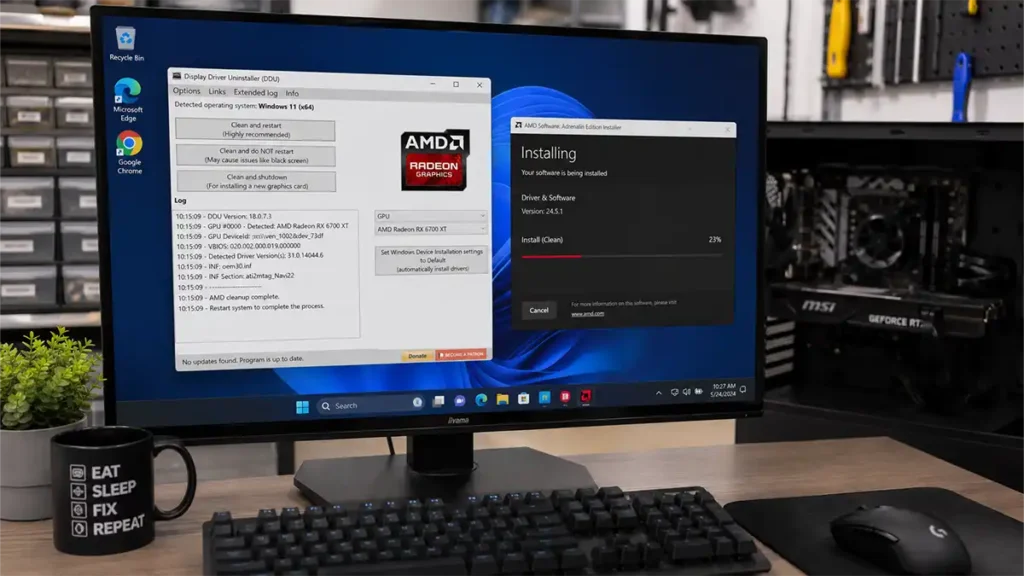
The right way to reinstall GPU drivers — DDU
Most people update drivers by downloading the new version and running the installer. This often leaves broken remnants from the previous install that cause ongoing problems.
The correct method uses Display Driver Uninstaller (DDU) (free — wagnardsoft.com). Here’s the exact process:
- Download the latest driver from Nvidia or AMD — don’t install it yet
- Download DDU from wagnardsoft.com
- Disconnect your internet connection
- Boot into Safe Mode (hold Shift while clicking Restart → Troubleshoot → Advanced Options → Startup Settings → Restart → press 4)
- Open DDU, select your GPU type (Nvidia or AMD), click “Clean and restart”
- After reboot, install the fresh driver you downloaded in step 1
- Reconnect internet
This removes every registry entry, broken profile, and driver remnant that the standard uninstaller leaves behind. It matters especially after switching from AMD to Nvidia or vice versa, after repeated crashes, or after a failed update.
Nvidia-specific issues in 2025/2026
- Shader compilation stutter on first game launch (normal — reduces after first session)
- MPO (Multiplane Overlay) conflicts causing flickering or black screen
- RTX HDR bugs with certain monitor configurations
- G-Sync combined with V-Sync causing frame pacing issues
- RTX 50 series launch drivers had documented stability issues — always check for updated drivers on a new card
AMD-specific issues in 2025/2026
- Shader cache corruption after updates — delete the shader cache folder in AMD’s AppData directory
- DX12 stutter in certain titles — try disabling Enhanced Sync
- Anti-Lag causing input issues in some games — toggle off per-game
- Timeout Detection and Recovery (TDR) crashes — usually driver instability or temperature related
- RX 9000 series early drivers had known bugs — update aggressively on new hardware
How to confirm drivers are the problem
- Performance was fine, then dropped after a specific driver version
- Problems happen across multiple different games, not just one
- Switching to a previous driver version improves things
- 3DMark benchmark scores are far below expected for your GPU
If only one game has the problem, it’s more likely a game-specific issue than a driver issue.
Section 3: Thermal and Power Throttling
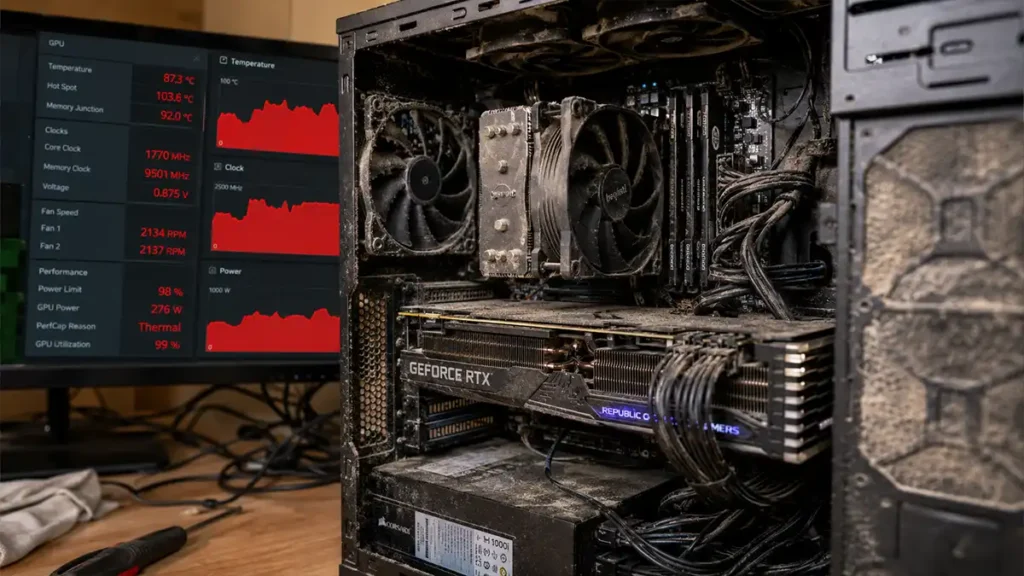
How common: Common, especially in laptops, prebuilts, compact cases, and older hardware.
What thermal throttling is
Modern GPUs have a self-protection mechanism. When they get too hot, they deliberately reduce their clock speed to bring temperatures down. This is called thermal throttling.
The result: lower clocks, lower GPU usage, lower FPS — even though nothing is broken. The GPU is working exactly as designed. The problem is heat.
Temperature limits by GPU generation
| GPU Series | When Throttling Typically Begins |
|---|---|
| RTX 30 series | ~83–85°C |
| RTX 40 series | ~83–88°C |
| RTX 50 series | ~85°C target |
| RX 6000 series | ~95–110°C hotspot |
| RX 7000 series | ~95–110°C hotspot |
| RX 9000 series | ~95°C hotspot target |
AMD users
AMD reports two temperatures — edge (the chip edge) and hotspot (the hottest point on the die). Hotspot is what matters. An RX 7900 XT at 85°C edge temperature might be fine, but 105°C hotspot is the number to watch.
How to check if your GPU is throttling
Open GPU-Z while gaming. Look at the PerfCap Reason field. If it shows anything other than “No” or “Idle” during gaming, that’s your throttle reason:
- Thermal — GPU is too hot
- Power — hitting power limit
- Voltage — voltage limits reached
- Util — GPU is maxed out (this is normal and good)
In HWiNFO, watch the GPU Clock Speed sensor. If it starts high and gradually drops during a gaming session, that’s classic thermal throttling.
Your GPU can also throttle due to power delivery problems even when temperatures are fine:
- The PSU can’t deliver stable power under GPU transient spikes
- PCIe power cables are daisy-chained from one PSU rail
- PSU wattage is insufficient for the card’s actual peak draw
- PSU is old and degraded
Power throttling — a different but related problem
| GPU | Common PSU Problem |
|---|---|
| RTX 4090 | Cheap 850W units, 12VHPWR adapter issues |
| RTX 5090 | Poor-quality 1000W units |
| RX 7900 XTX | Daisy-chained PCIe cables causing instability |
| RTX 4080 Super | Weak transient handling on budget PSUs |
How to fix thermal throttling — in order
Start here (free):
- Clean your case dust filters and GPU heatsink fins
- Increase your GPU fan curve in MSI Afterburner (free)
- Remove your case front panel if it’s solid — restricted intake is one of the most common causes of GPU heat in prebuilts
Next level:
- Reposition case fans for better intake/exhaust balance
- Undervolt the GPU in MSI Afterburner — reduces heat with little to no performance loss
- Replace dried thermal pads on GPU VRAM (usually needed after 3+ years)
If it’s power throttling:
- Replace daisy-chained PCIe cables with separate native PSU cables
- Upgrade PSU if undersized or old
Section 4: PCIe Slot Issues
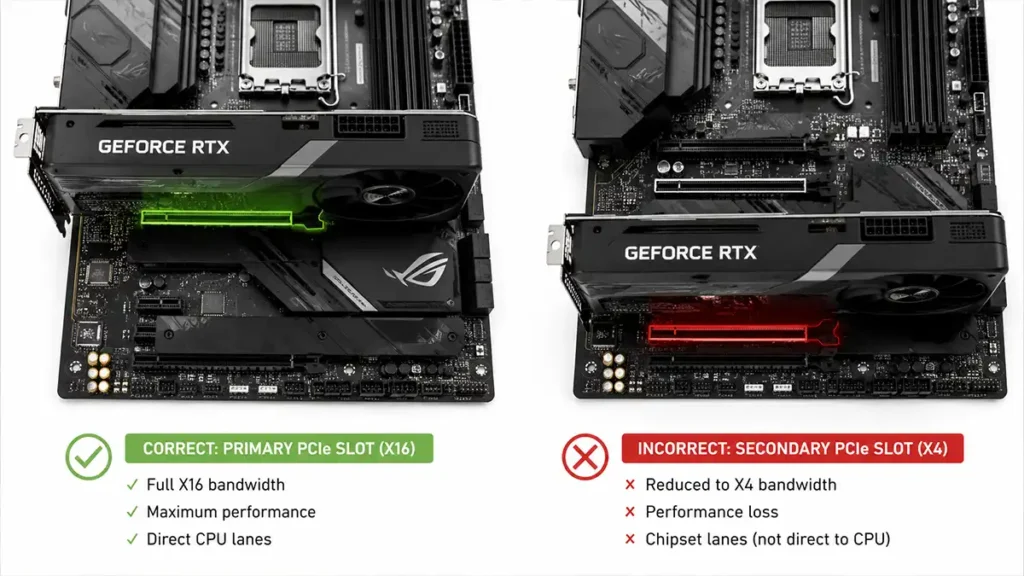
How common: Less common than CPU bottleneck or thermals, but frequently overlooked.
What PCIe lanes actually do
PCIe lanes are the communication highway between your GPU and CPU. A standard gaming GPU uses a PCIe x16 slot — 16 lanes of bandwidth. If that drops to x8 or x4 due to motherboard lane sharing or wrong slot usage, the GPU gets less bandwidth.
Does running at x8 actually hurt performance?
In most gaming scenarios, PCIe x8 vs x16 makes very little difference. The real danger zones are:
- Running at PCIe x4 or lower — that’s where gaming performance visibly suffers
- Using PCIe 3.0 x8 with a very high-end GPU
- Motherboard lane-sharing configurations that quietly drop to x4 when multiple M.2 drives are installed
How to check
Open GPU-Z and look at the Bus Interface field. Click the small “?” render button to force a load test and get the accurate reading.
You want to see: PCIe x16 4.0 @ x16 4.0
Problem readings:
- PCIe x16 4.0 @ x4 3.0 — major issue
- PCIe x16 4.0 @ x8 4.0 — minor, probably fine for gaming
- PCIe x16 4.0 @ x1 3.0 — GPU is not fully seated or slot is damaged
Common scenarios in 2026
- GPU installed in the secondary PCIe slot instead of the primary top slot
- Cheap B650 or B760 boards sharing lanes between GPU and M.2 slots
- Mini-ITX boards routing fewer lanes due to chipset design
- Riser cables used for vertical GPU mounting reducing link speed
Section 5: Frame Limiters and Hidden Caps
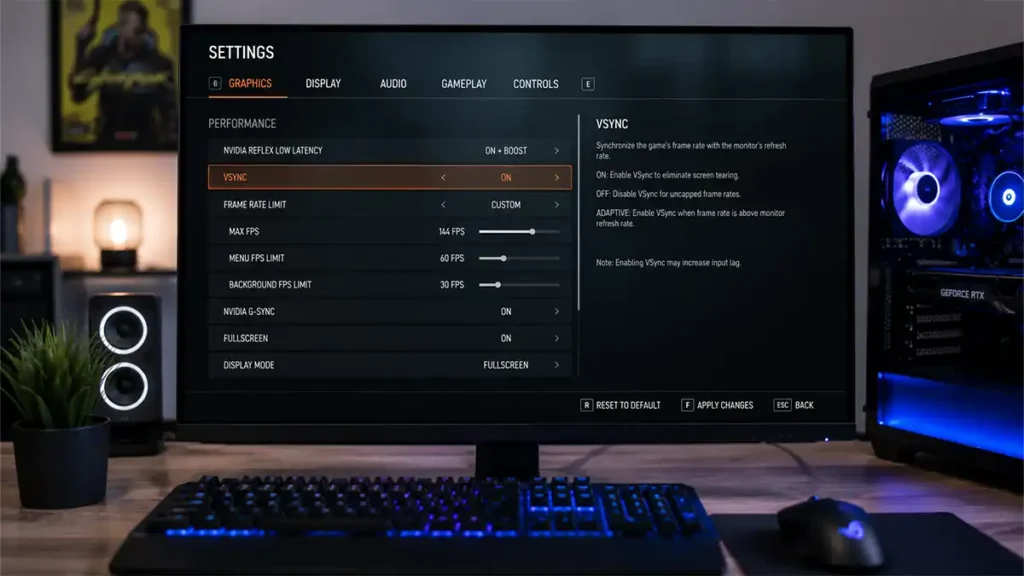
How common: Very common. Probably the most overlooked cause of low GPU usage.
Why a frame limiter makes GPU usage drop
This is not a problem. The GPU only works as hard as needed to hit your frame rate target. If you have a 60 FPS cap and your GPU could render 180 FPS, it will run at roughly 33% usage. Usage looks low. GPU is fine.
The problem is when you don’t know a limiter is active.
Every place a frame limiter can hide
In-game: FPS cap in video settings, frame smoothing, dynamic resolution, render scale below 100%
Nvidia software: Nvidia Control Panel → Max Frame Rate, Nvidia App per-game settings, WhisperMode on laptops
AMD software: Radeon Chill, HYPR-RX profiles, FRTC (Frame Rate Target Control)
Other: RivaTuner Statistics Server (RTSS), V-Sync, G-Sync with V-Sync enabled, Windows battery saver mode on laptops
How to clear all limiters
Go through every location above and confirm each is disabled. Then run a benchmark and check GPU usage. If it jumps to 90%+, a limiter was the cause.
Section 6: Windows and Software Issues
How common: Moderately common.
Windows Power Plan
Balanced power plan in Windows can delay CPU frequency ramp-up and add scheduling latency. In CPU-heavy games this translates to real FPS loss — typically 5–15% in affected titles.
The fix:
- Windows 11: Settings → System → Power & Battery → Power Mode → Best Performance
- Or: Control Panel → Power Options → High Performance
Hardware Accelerated GPU Scheduling (HAGS)
HAGS moves GPU memory scheduling from the CPU driver to the GPU itself. Whether it helps or hurts depends on your setup.
Turn HAGS on if: You have an RTX 40 or 50 series GPU using frame generation, or play primarily DX12/Vulkan games.
Try HAGS off if: You have an older GPU, play esports titles, or experience stutter that appeared after enabling it.
Toggle in Windows 11: Settings → System → Display → Graphics → Change default graphics settings.
Background apps that steal GPU resources
Common GPU resource consumers while gaming:
- Google Chrome or Edge with hardware acceleration
- Discord overlay
- Wallpaper Engine
- OBS or streaming software
- RGB control software (iCUE, Armory Crate, NZXT CAM)
- Nvidia Broadcast or AMD Noise Suppression
If VRAM usage looks high before you even launch a game, check Task Manager for GPU memory usage by process.
Section 7: Hardware Installation Problems
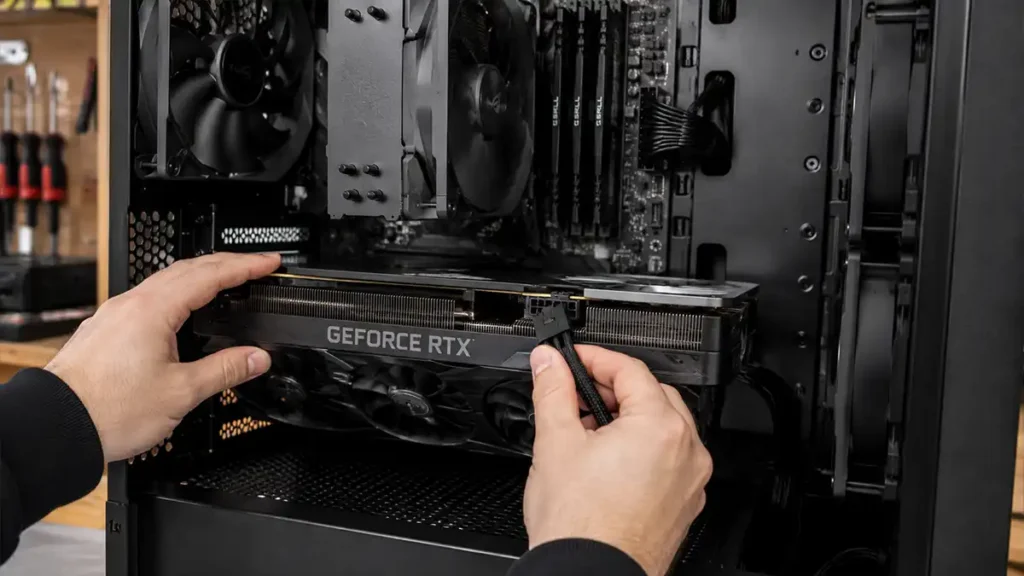
How common: Surprisingly common in new builds and after hardware moves.
GPU not fully seated
A GPU that isn’t completely pushed into the PCIe slot can cause detection failures, x4 operation, random crashes, or no display. This happens more often than people expect — after a move, after adding another component nearby, or simply from a first build where the slot latch didn’t fully click.
How to check: Power off and unplug. Remove the GPU completely. Reinsert firmly until you hear or feel the retention latch click.
Power connectors not fully inserted
Partially connected PCIe power cables cause GPU throttling, black screens, and instability — particularly on high-power cards with the 12VHPWR or 12V-2×6 connector (RTX 4080, 4090, 5080, 5090). The connector needs to be fully seated with no gap.
Daisy-chained PCIe cables
Using one PSU cable that splits to feed two GPU power connectors is acceptable on lower-power GPUs. On high-end cards it’s a problem — both connectors share the same wire back to the PSU and can’t deliver enough current under heavy load.
The rule: Use separate native PSU cables — one from the PSU to each GPU power connector.
Resizable BAR (ReBAR) — is it enabled?
Resizable BAR allows the CPU to access the full GPU VRAM at once. It’s a free performance gain of roughly 3–10% in many modern games. Most people with a 2021 or newer system have the hardware support but may not have it enabled.
How to enable it:
- Enter BIOS (press Delete or F2 at boot)
- Enable “Above 4G Decoding”
- Enable “Resizable BAR” or “Re-Size BAR Support”
- Disable CSM / Legacy Mode if on
- Save and reboot
Verify in GPU-Z — it shows “Resizable BAR: Yes” when active.
GPU not detected at all — checklist
- Reseat the GPU — properly, latch clicked
- Check all PCIe power cables are fully inserted
- Try a different PCIe slot
- Clear CMOS
- Update BIOS
- Check BIOS — confirm PCIe slot isn’t disabled
- Try another PSU
- Test GPU in a different PC
- Test a different GPU in your system
Section 8: Misdiagnosis — When There’s Actually No Problem
How common: Very common. Many people troubleshoot a problem that doesn’t exist.
Low GPU usage with good FPS is normal
If your frame rates are where you want them, frametimes are smooth, and temperatures are fine — low GPU usage is not a problem. It means the GPU has spare headroom it doesn’t need to use.
This is completely normal in esports games at 1080p, in older titles, and whenever a frame limiter is active.
Why 99% GPU usage is not always good
Counter-intuitively, 99% GPU usage with bad FPS or heavy stutter usually means:
- VRAM overflow — your GPU’s VRAM is full and it’s swapping data in and out of system RAM, which is massively slower. Results in huge frametime spikes, stuttering, and texture pop-in. Common on 8GB cards playing modern AAA games at Ultra settings in 2026.
- Thermal throttling while at load — the card is maxed AND throttling. GPU usage stays high but clocks are reduced.
- The game genuinely needs more GPU — your card is simply too slow for your resolution and settings.
GPU core usage vs VRAM usage
- GPU core usage = how busy the shader processors are
- VRAM usage = how much video memory is occupied
You can have low core usage with high VRAM use, or high core usage with plenty of free VRAM. Check both separately — they’re different problems with different fixes.
Low GPU usage: FAQ❓
No. Low GPU usage with good frametimes means the GPU has spare capacity — because of a frame cap, a CPU bottleneck, or a lightweight game. This is normal.
Usually shader compilation on first launch, CPU bottleneck bursts, thermal throttling, or VRAM swapping. Watch the frametime graph in CapFrameX (free) alongside GPU usage to identify which.
Almost certainly a CPU bottleneck, especially at 1080p. A bigger GPU doesn’t help when the CPU is the ceiling.
Either VRAM is overflowing (common with 8GB cards at Ultra settings in 2026), the GPU is thermally throttling, or the card isn’t fast enough for your resolution and settings.
Windows 11: Settings → System → Display → Graphics. Find the game, click Options, select High Performance. Also make sure your monitor is plugged into the GPU port, not the motherboard video output.
Probably not. Most modern GPUs have zero-RPM mode — fans stay off below 50–60°C. Test with MSI Afterburner by manually setting fan speed to 50% and confirming they spin.
The game must explicitly support DLSS. Also confirm your monitor cable is in the GPU port, your driver is current, and you’re not accidentally running on integrated graphics.
GameMonkey Verdict
Most of the time, it isn’t the GPU.
Here’s the uncomfortable truth about GPU underperformance: most of the time it isn’t the GPU.
Before you return a card, open a support ticket, or spend money on anything — three fixes resolve the majority of every “my GPU isn’t working properly” situation we’ve ever seen. Do them in this order.
Fix 1 — Kill every frame limiter first. Check in-game settings, Nvidia Control Panel or AMD Software, RTSS, and Windows battery settings. Disable all of them temporarily. If GPU usage jumps to 90%+ immediately, you found your problem in five minutes.
Fix 2 — Clean driver reinstall with DDU. Even if your drivers seem fine. Download DDU (free — wagnardsoft.com), boot into Safe Mode, run it, reinstall fresh from Nvidia or AMD directly. Takes 15 minutes and fixes more problems than it has any right to.
Fix 3 — Check thermals and power delivery. Clean the dust, increase your fan curve in MSI Afterburner (free), confirm your PCIe cables are native and fully seated, and verify your PSU is adequate for your GPU’s real power draw. Thermal and power throttling are silent — the GPU doesn’t warn you, it just quietly runs slower.
If all three are done and the problem persists, work back through the diagnostic sections above. The answer is in there. GPU hardware failure is real but it’s the last thing to suspect, not the first.
Related guides: GPU Buying Guide 2026 · CPU Guide for Gamers · RAM and Storage Guide · PC Build Guide 2026